Todoist for GTD: how to organize tasks and reach goals
Work and productivity
Todoist for GTD: how to organize tasks and reach goals
In short
Todoist can be used to organize tasks with the GTD system. We look at the project structure, processing the inbox and the app’s features for planning.

Todoist for GTD is one way to organize tasks and projects with the Getting Things Done system.
At its core Todoist is an app for making to-do lists. At the same time a set of additional features lets you use it as a full task management tool.
Todoist cannot be called a perfect solution for all users, but its features deserve attention.
The app is available for Windows, macOS, Android and iOS, and through a browser. You can use it free of charge, but some features require a paid subscription.
The Getting Things Done method helps move tasks out of your head into an external system.
Thanks to this you can be less distracted by having to remember things and focus on doing them.
At the same time you do not have to use a strictly defined GTD structure.
Let’s look at one option for organizing this system with Todoist.
How to use Todoist for GTD
The first step is to create a project structure that lets you distribute incoming tasks by deadline and category.
A few main sections will be needed for this.
“Inbox” — all new ideas and tasks are collected here.
The other projects are used to distribute items after processing the “Inbox” list.
Projects for planning tasks
“This week” — tasks you plan to work on during the current week.
“Next week” — things that need to be done soon but are not urgent enough to deal with right away.
“This month” — tasks planned to be done relatively soon but that can be put off for a week or two.
“Next month” — things you want to do later.
It is also worth creating two more projects.
“Recurring tasks” — regular actions linked to goals important to you.
“Routine” — everyday duties that may not relate directly to your goals but need regular attention.
For example, sports or club meetings.
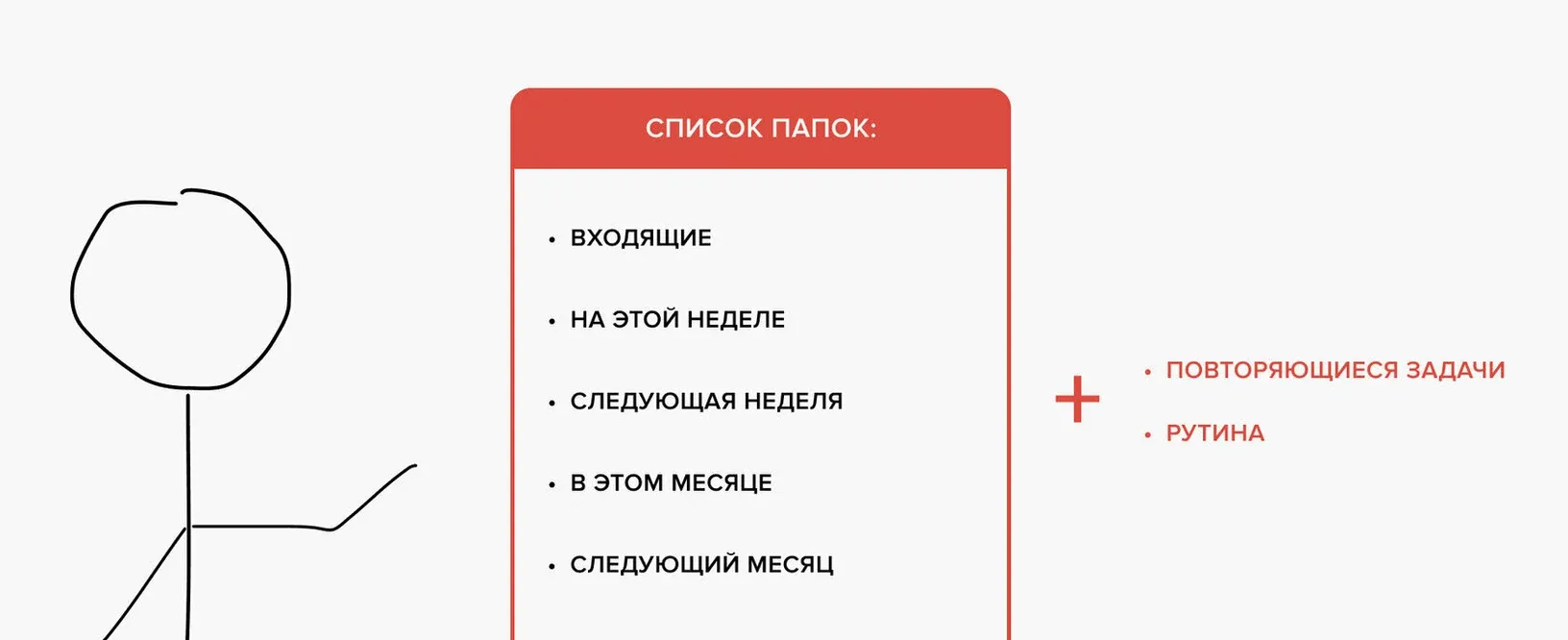
An example of a project structure in Todoist.
How to work with the “Inbox” list
When new tasks appear during the week, add them to the “Inbox” project.
That way you can save the information without being distracted by immediately planning every item.
Later you can return to these tasks and decide when they need to be done.
Once a week set aside 20–30 minutes to process the “Inbox” list.
At that time go through the tasks in order and determine their importance and deadlines.
Let’s look at a few examples.
Example 1. A deferred task
I know I want to wash the windows, but it is still winter outside.
So I will move this task to the list of long-term or deferred items.
Example 2. Planning for next month
I need to have my annual medical check-up, but I am busy this month.
So I move the task to the “Next month” project.
Example 3. A task for the current week
I plan to write an article for Dzen this week.
To do this I define the day and time when I can work on the material, and then move the task to the “This week” project.
So three tasks are distributed to the appropriate projects.
In the original example such processing took about five minutes.
Now the tasks are in the Todoist system, so they can be returned to at the scheduled time.
This lets you focus on doing current things instead of constantly thinking through the whole list.
Which Todoist features are useful for GTD
Todoist has several tools that help organize work with tasks.
- Dates and times. You can set deadlines with a calendar.
- Priorities. Tasks have priority levels from 1 to 4, where the first is the highest and the fourth the lowest.
- Notifications. The app lets you get reminders by email or through system notifications.
- Recurring tasks. You can set up regular completion of things at a given frequency.
- Notes and attachments. You can add text comments, files and links to external sources to tasks.
Why Todoist suits task management
When working with the GTD system it is important to choose tools that are clear and do not complicate everyday tasks.
Todoist lets you record ideas, distribute tasks by project, assign deadlines and track completion.
For organizing personal productivity these features may be enough.
If you want to use GTD in practice, it is worth trying Todoist and assessing how well the suggested structure matches your tasks and usual workflow.
Questions on the topic
How do I use Todoist for GTD?
Create a project structure, record new items in the “Inbox” and regularly distribute them by deadline.
Which projects are needed to organize GTD in Todoist?
The article suggests “Inbox”, “This week”, “Next week”, “This month”, “Next month”, “Recurring tasks” and “Routine”.
How often should I process incoming tasks?
The author suggests setting aside 20–30 minutes once a week to process the “Inbox” list.